
Turn your image into a looping GIF
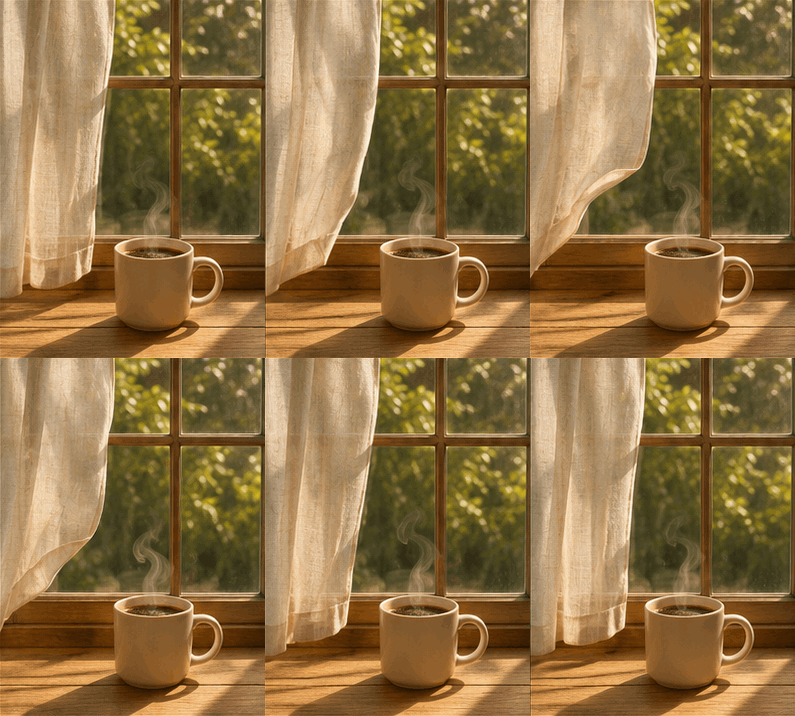
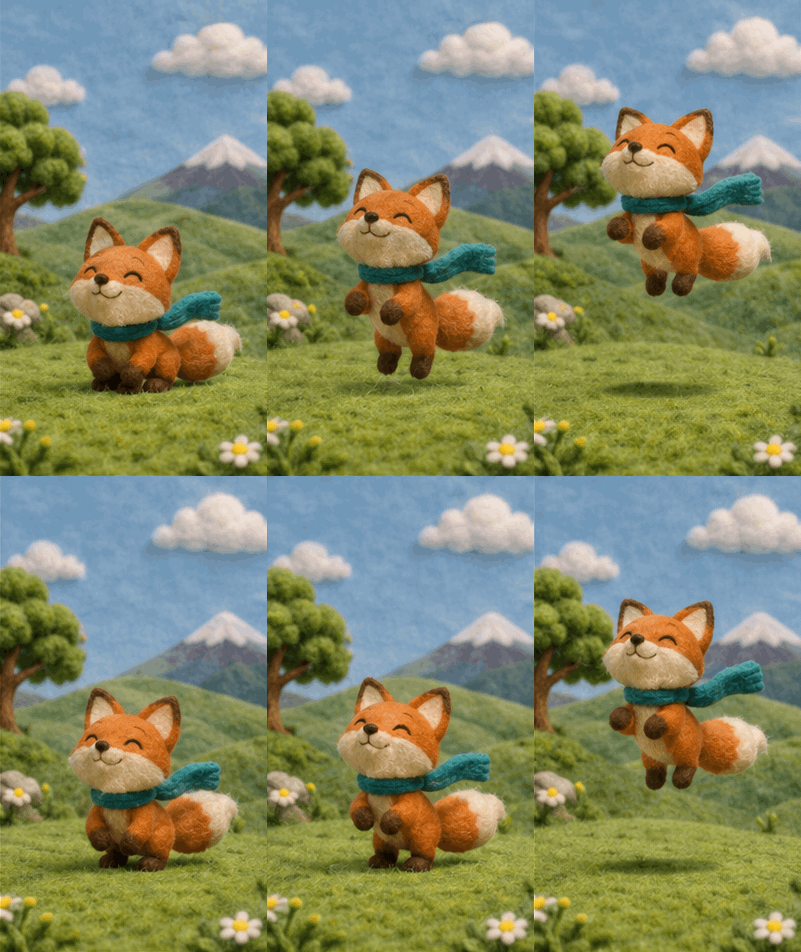
Start with a prompt or a still image and describe what should move. Let the curtain sway beside a cup of coffee, a felt fox spring off the grass, or the stars around a sale sticker twinkle.
Page loading...
Page loading...Create still images, looping GIFs and SVG artwork. Start with a prompt or edit a reference image.
Start with a prompt or a still image and describe what should move. Let the curtain sway beside a cup of coffee, a felt fox spring off the grass, or the stars around a sale sticker twinkle.
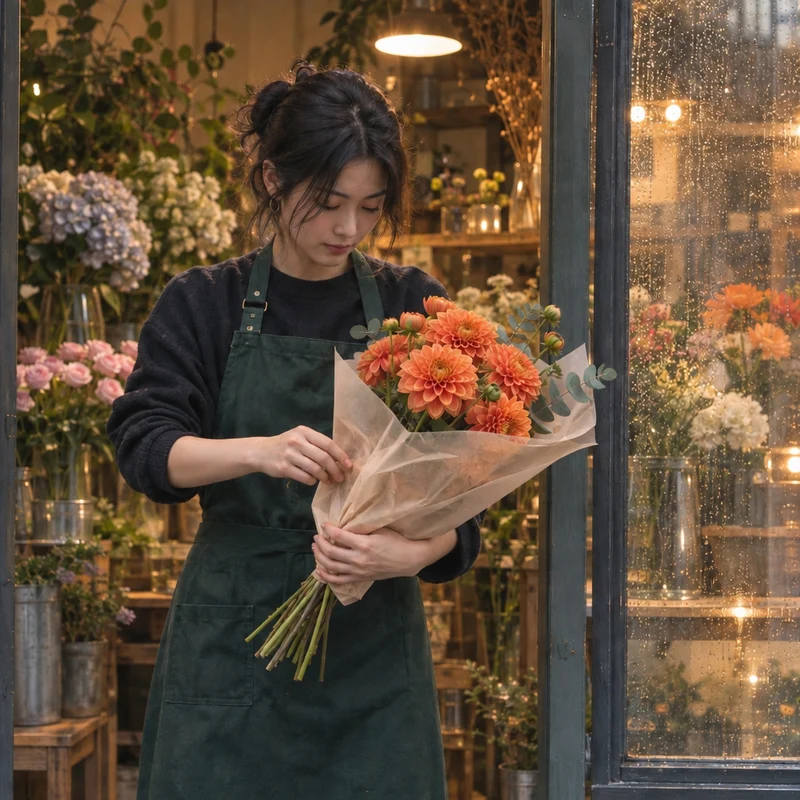 Flare
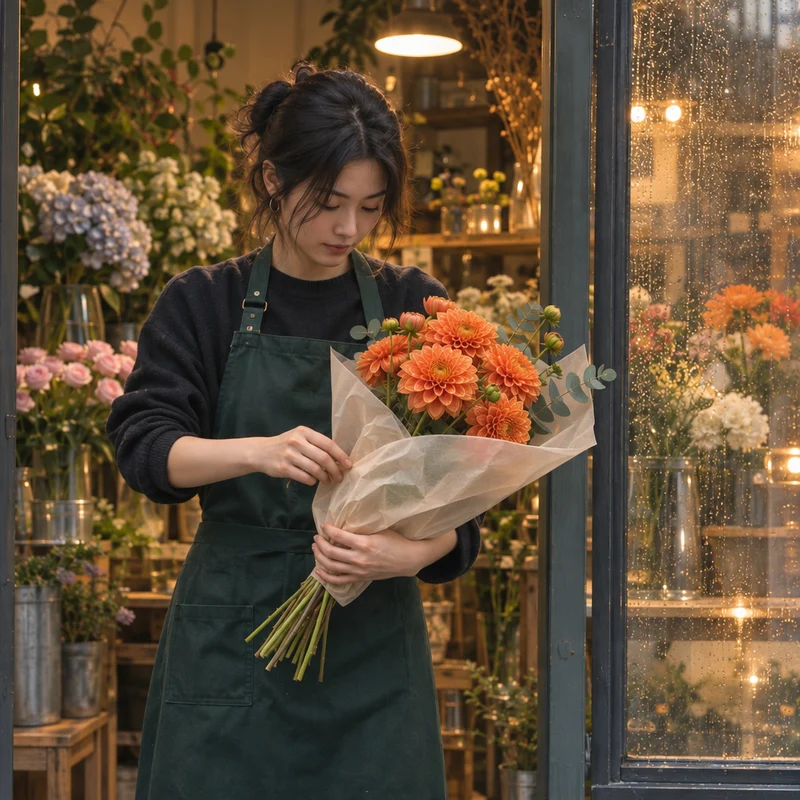 Sunburst
GPT Image 2.6 offers two modes. Flare generates images faster, making it a good fit for sketches, composition studies and everyday social posts. Sunburst focuses on detail and precise edits. Use it for editorial images, product shots and infographics, or when you want to keep a subject consistent across several rounds of edits.
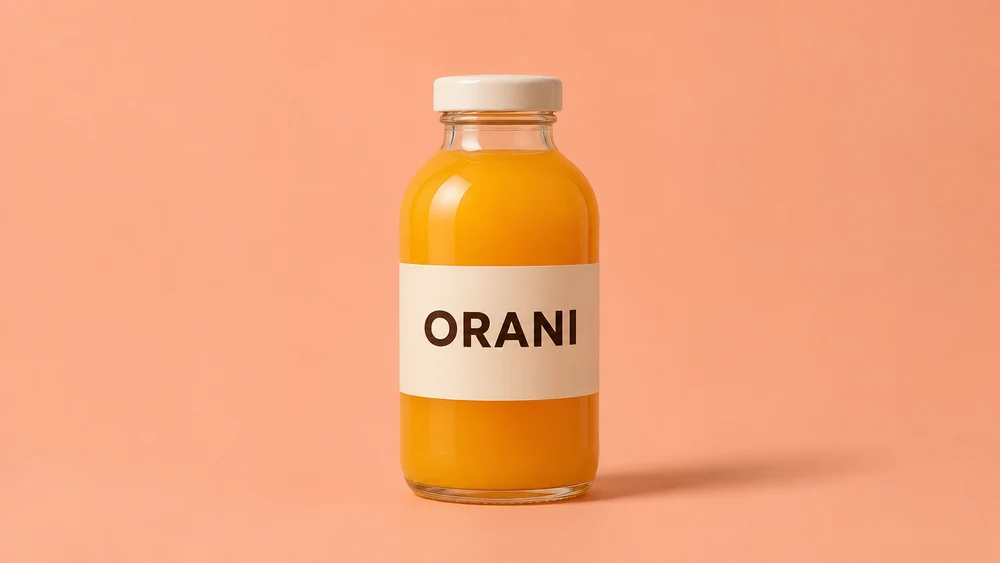
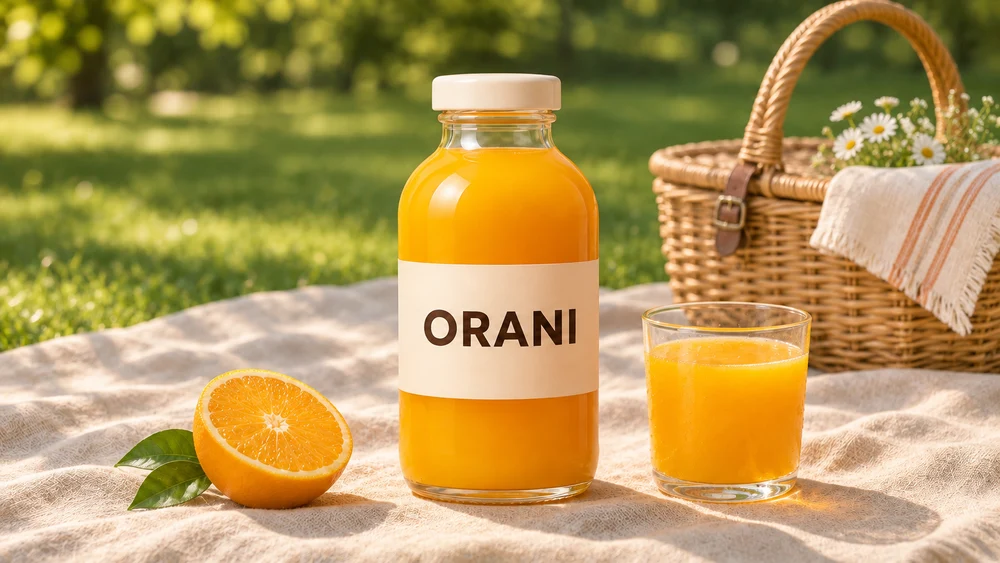
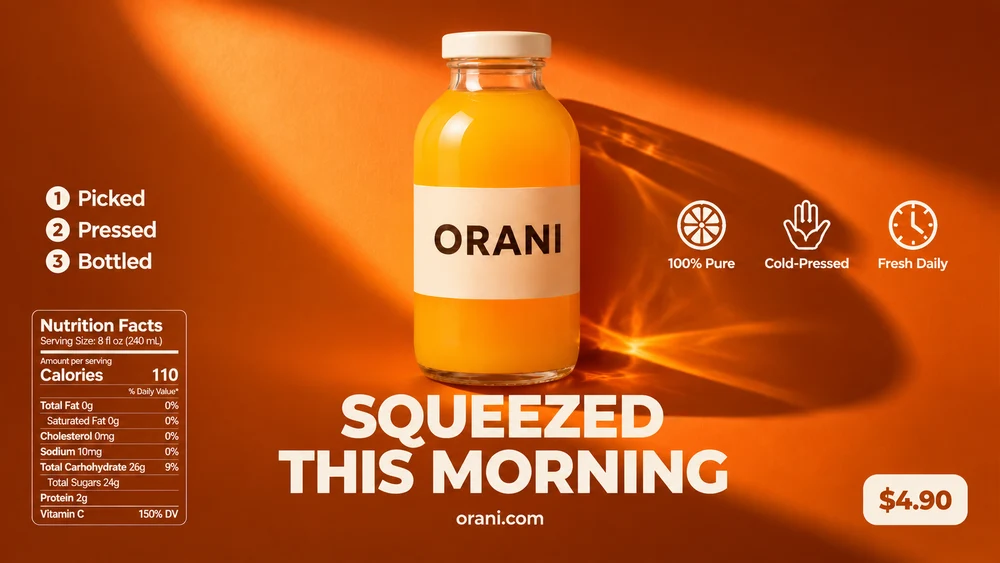
GPT Image 2.6 offers low, medium and high reasoning effort. This controls how much the model plans the scene before drawing it. Choose low to replace a background, make a small edit or try a few variations quickly. Try medium when several subjects need to work together in position and style. For infographics, text-heavy posters or layouts with precise requirements, high gives the model more time to arrange text, compose the scene and account for relationships between objects. Watch the same bottle go from a product shot to a picnic scene to a finished ad.
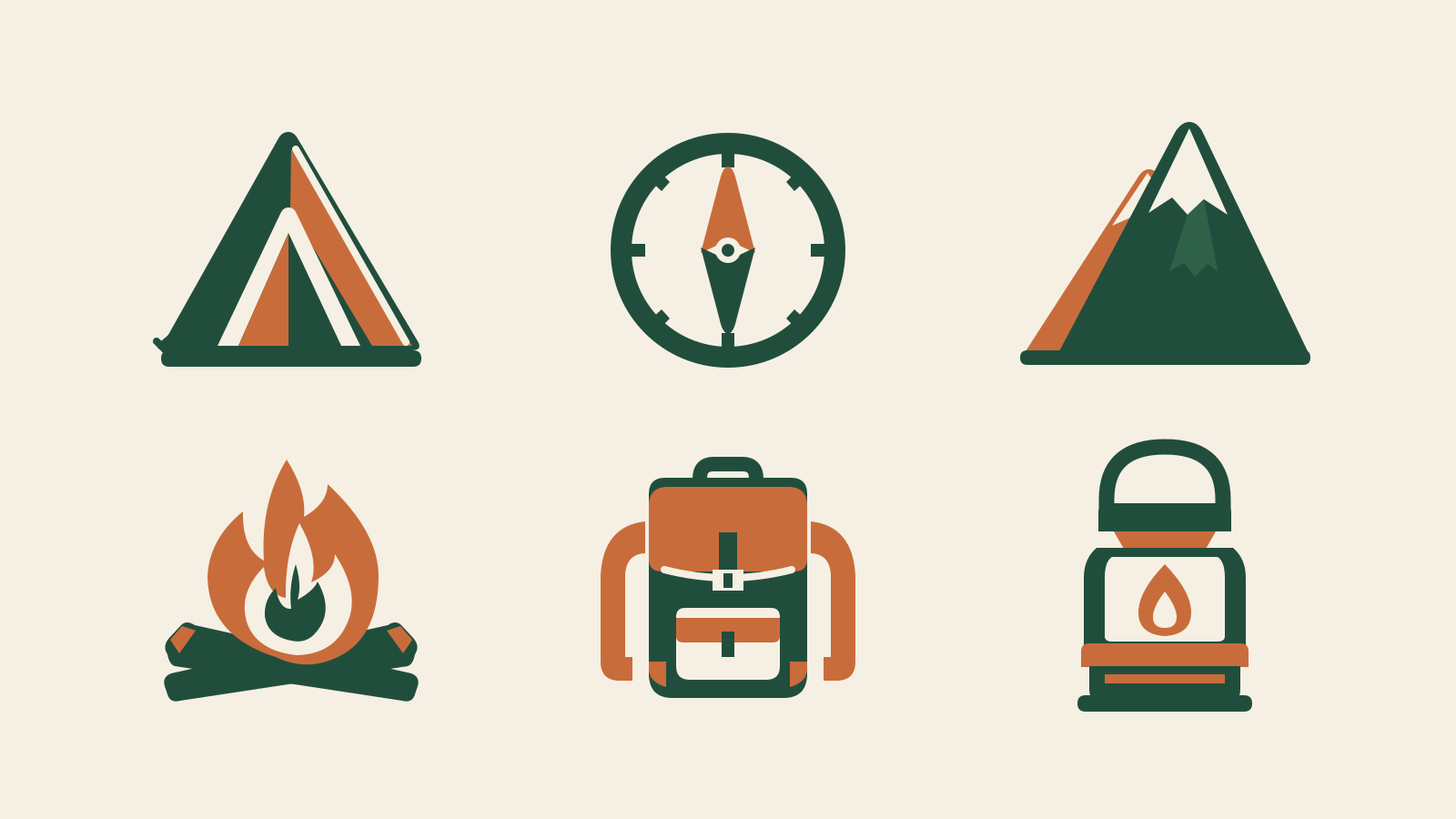
Describe a logo, icon or illustration and GPT Image 2.6 can generate it as an SVG. Download the file to edit its paths and colors in a vector editor, or resize it while keeping the edges sharp. For example, create a set of camping icons with matching line weights and colors. Use the tent on a trail map, recolor the compass for a sticker, or enlarge the mountain for a campsite sign.
Pick Flare or Sunburst, then PNG, GIF or SVG.
Write a prompt or add a reference. For GIFs, explain the motion and how it should loop.
Choose quality, aspect ratio and output count. For GIFs, set the frame count and timing. Check the credit total, then generate.
Design illustration · made with the built-in image tool
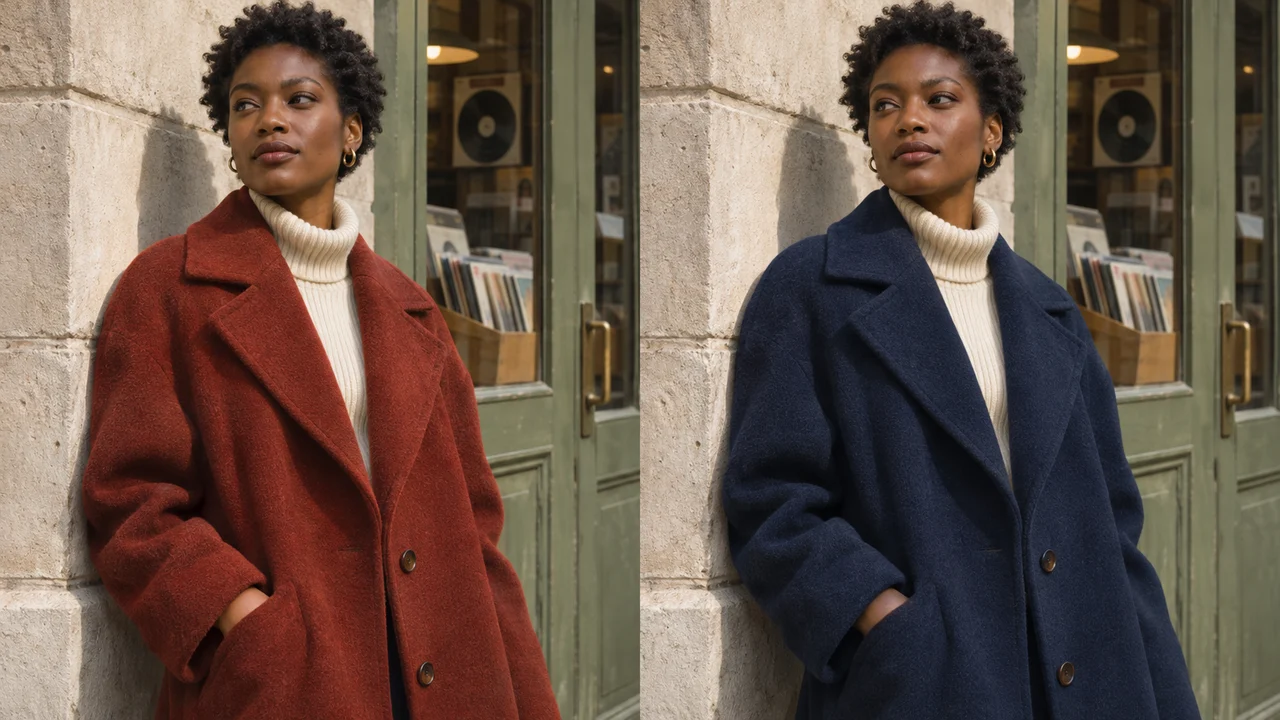
Your client has approved the street portrait and wants to see the coat in navy. Start with the approved shot and specify the new fabric color while keeping the pose, light and storefront in place. Show both versions side by side for the client to choose.
Design illustration · made with the built-in image tool
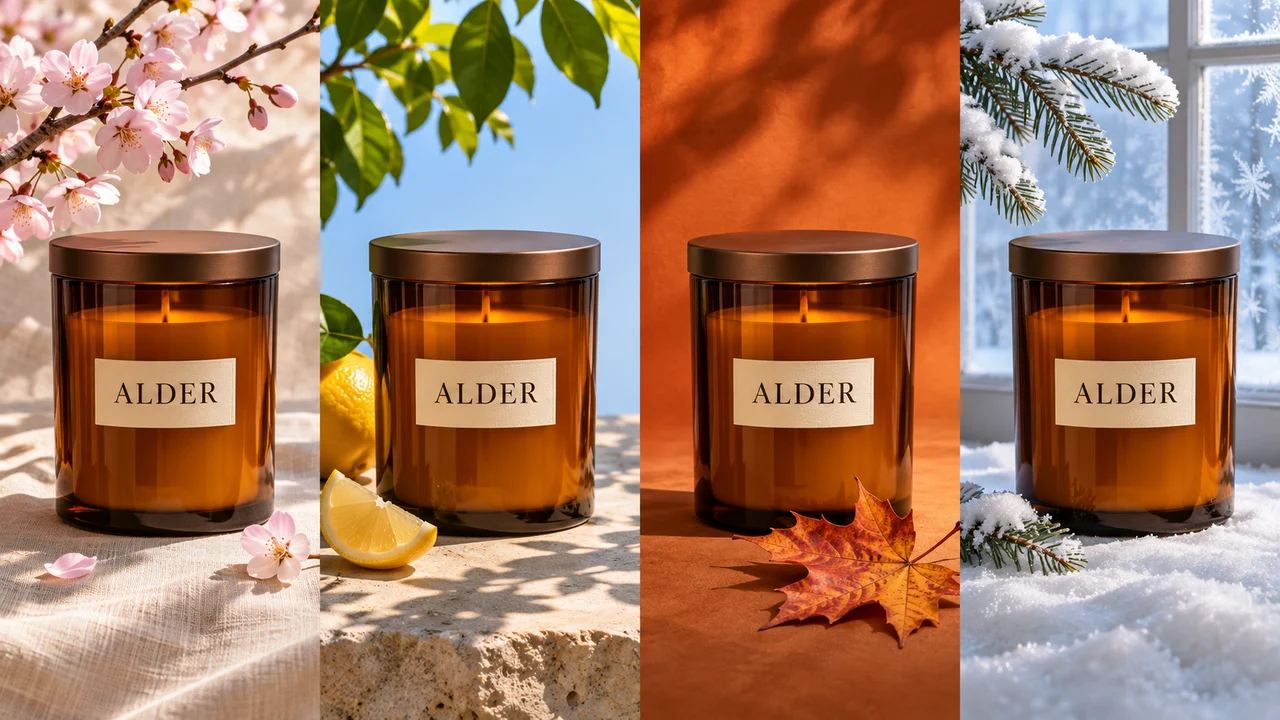
Give one amber candle a setting for every season. Frame it with spring blossoms, lemon leaves in summer, an autumn maple leaf or a snowy winter windowsill. Keep the jar and its label in the same position so shoppers recognize the product across the collection.
Design illustration · made with the built-in image tool
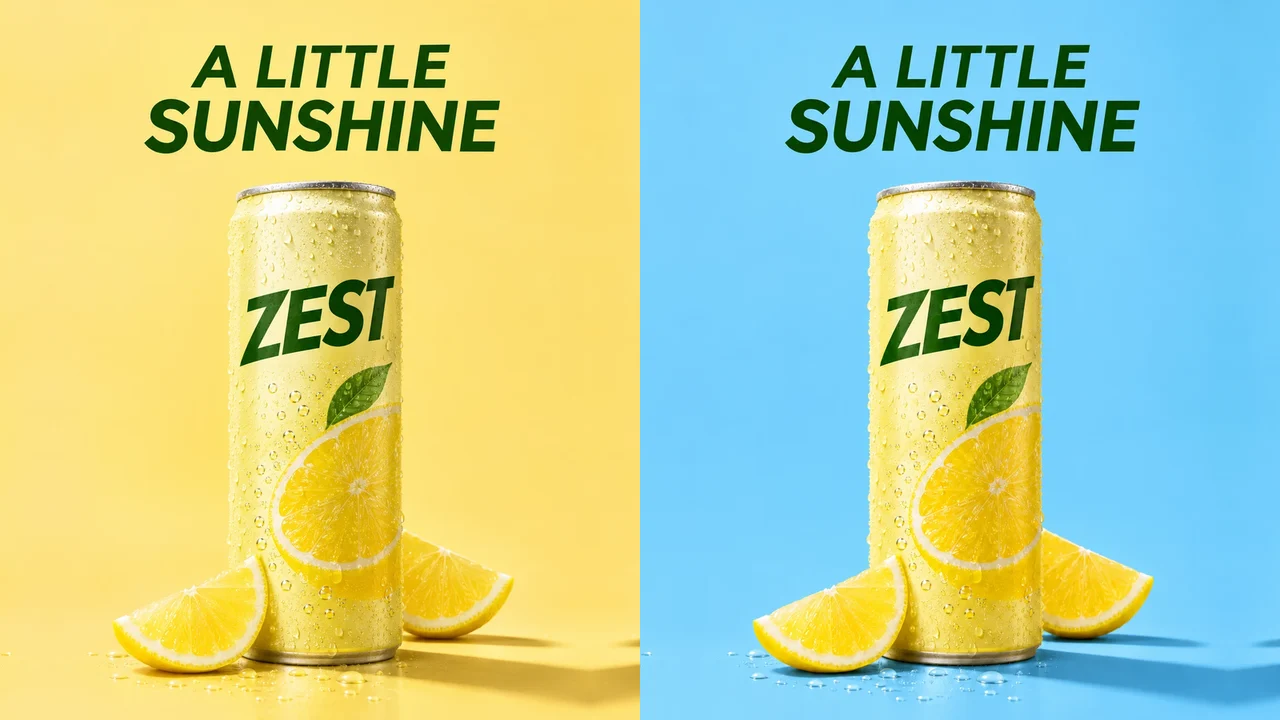
The ZEST can, lemon slices and headline are already in place. Change the background from lemon yellow to sky blue and compare the two ads side by side. Which color draws your eye to both the can and the headline?
Design illustration · made with the built-in image tool
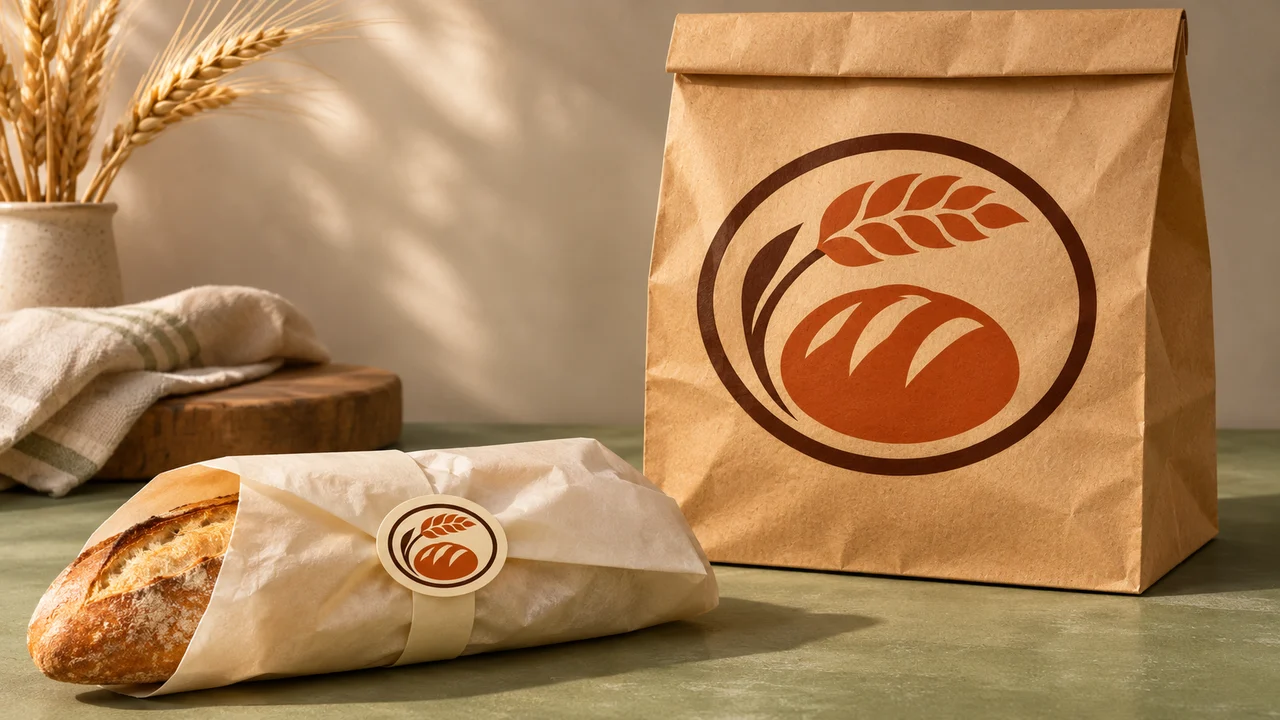
A bakery needs one mark for a small wrapper seal and a large paper bag. Turn a wheat stalk and a scored loaf into an SVG emblem, then adjust its size and colors for each package. Customers can recognize the same mark at either size.
| Feature | GPT Image 2 | GPT Image 2.5Flare / Sunburst | GPT Image 2.6Flare / Sunburst |
|---|---|---|---|
| Output types | PNG | PNG | PNG, GIF, SVG |
| Quality levels | Low, medium, high | Low, medium, high, extra high, max | Low, medium, high, extra high, max |
| Reasoning effort | — | — | Low, medium, high |
| Generation speed | 15s+ | Flare: 12s+ Sunburst: 30s+ | Flare: 6s+ Sunburst: 15s+ |
| Best for | Everyday illustrations and basic edits | Explore different compositions quickly or make precise edits to a reference image. | Generate detailed images faster, or create looping GIFs and SVG. |
Select the perfect plan for your AI image generation needs. Paid plans include commercial licensing.
Includes:
Includes:
Includes:
Includes:
Alongside image generation and editing, GPT Image 2.6 can produce short looping GIFs and SVG vector graphics. Imaginify connects to Flare and Sunburst through fal.
Start with Flare for quick exploration and everyday images. Choose Sunburst for intricate details and careful editing. The right result still depends on your prompt and references.
Yes. Use the output count control: up to 2 on Hobby, 3 on Creator and 4 on Pro. The frame count and dimensions must also fit the shared request pixel limit.
Choose 2–16 frames and 20–2000 milliseconds per frame, in 10-millisecond increments. The starting settings are 9 frames at 200 milliseconds each, a 1.8-second loop.
SVG output supports text-to-image generation only, with one output per request. Download the SVG and use a vector editor to change its paths and colors. For reference-image editing, choose PNG or GIF.
Credits depend on the format, model, quality and output count; GIF settings also affect the cost. The generator shows the total before submission. GPT Image 2.6 requires Hobby or higher.
Reasoning controls how much the model plans the composition before drawing. Use high reasoning for a layout with several subjects or precisely placed text. Quality controls how much detail goes into rendering the finished image.
Upload the photo, choose PNG, and describe both the change and what to keep. For example: “Change the coat to navy blue. Keep the face, pose, lighting and background the same.”